Run Project
In order to import into the GIS database the data contained in the import set files, the user must run the project.
This can be done via the dedicated Run button available in the GPT header.
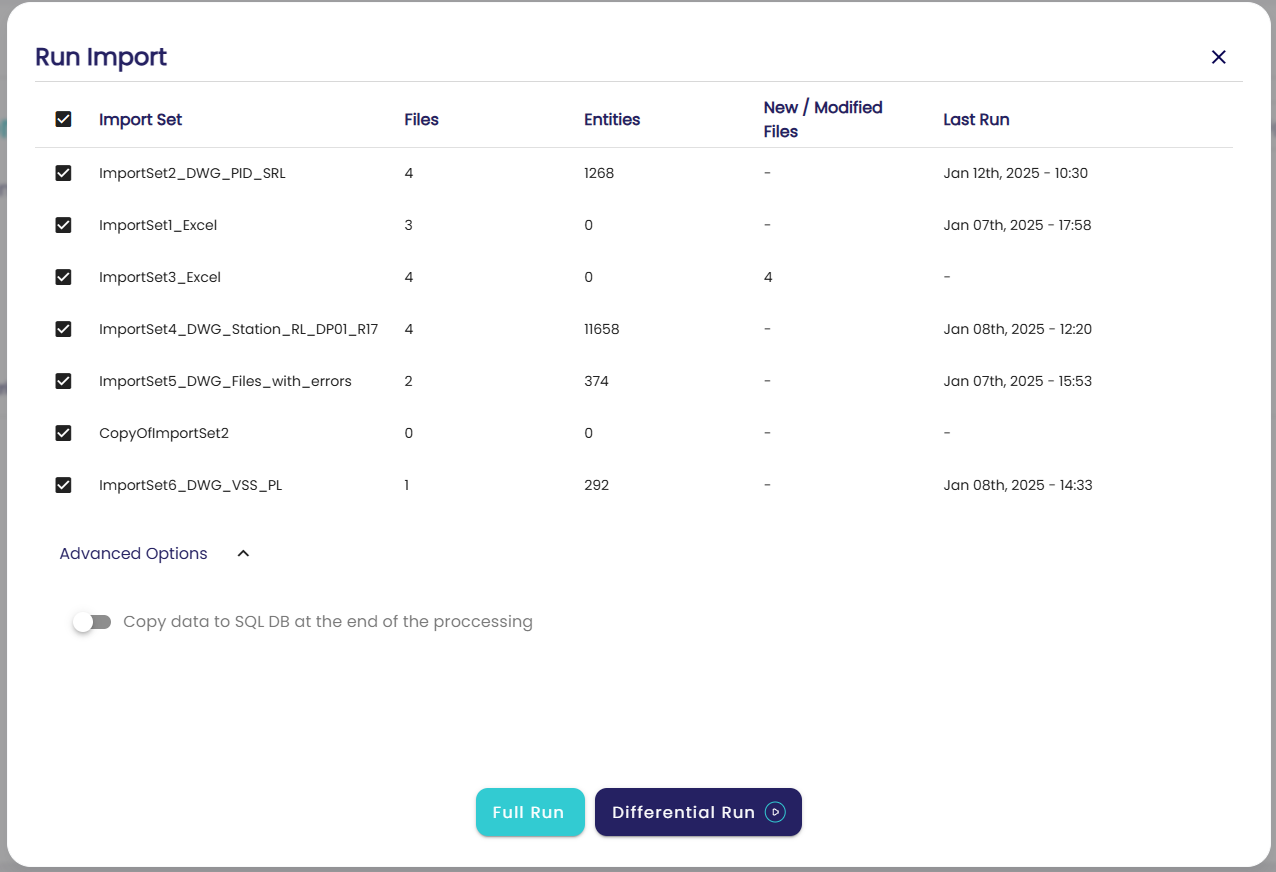
When clicking the Run button, a modal presents the user with a summary of all the project import sets.
In case of an import set with no processable files, a warning icon is displayed next to the import set name.
Via this modal, the user can select the import sets to process.
The processing of the import sets can be of two types:
Full
This consists of processing again all the files included in the import set, even if they may have already been processed in the past.
Differential
This consists of processing only the files created and/or modified since the last time the import set was processed.
Note
The Differential option is preferred when the number of new or updated files is considerably smaller than the total number of files. It makes GPT processing time much faster.
After the user selects the type of run, the user is automatically redirected to the project dashboard. For more information, see Dashboard.
Errors and Warnings
When GPT processes the files of an import set, the outcome can be one of three scenarios:
The file is successfully processed with no problems.
The file is successfully processed, but some logic of the import set could not be applied. This scenario triggers a warning.
The file could not be processed. This scenario triggers an error.
At the end of a run, a file will be flagged as successfully processed, processed with warning, or processed with error. In the last two cases, the user is presented with details of the problem that occurred.
The following table describes the types of errors that the application supports:
Applies To |
Scenario |
Error Details |
Category |
|---|---|---|---|
DWG only |
DWG files have an attribute called |
Wrong measuring unit. Expected value = |
Configuration |
DWG only |
DWG files have an attribute that defines the spatial reference used by the drawing. This error is triggered when GPT fails to retrieve this information. |
Failed to get spatial info. |
Configuration |
DWG only |
DWG files have an attribute that defines the spatial reference used by the drawing. This error is triggered when the attribute value is different from the one defined in the project general settings. |
Wrong spatial reference. Expected value =
|
Configuration |
DWG; Excel |
This error is triggered when the combination of optional filter by polygon and import set filters makes a file empty, meaning no features are left to be published on the ArcGIS Pro database. |
Combined filters result in the file being empty. Verify filter criteria. |
Filter |
DWG; Excel |
This error is triggered when, for some reason, GPT fails to publish the features of an import set to the ArcGIS Pro database. |
Failed to transfer features to the publish dataset. |
Publish |
DWG; Excel |
This is a fallback error that is triggered whenever something in the code goes wrong and does not fall into any of the previously listed scenarios. |
General Error. |
Other |
The following table describes the types of warnings that the application supports:
Applies To |
Scenario |
Warning Details |
Category |
|---|---|---|---|
DWG; Excel |
This warning is triggered when a file of an import set does not contain the attribute that has been defined as a filtering criterion. This means that GPT is not able to apply the filter to the specific file. |
Filtering not possible: FeatureClass does not have attribute
|
Filter |
DWG; Excel |
This warning is triggered when GPT is not able to apply the filter by polygon for some reason. |
Unable to filter feature by geo-filter: |
Filter |
DWG; Excel |
This warning is triggered when GPT is not able to apply a dynamic enrichment because it failed to load the translation table. |
Dynamic enrichment for new attribute |
Enrichment |
DWG; Excel |
This warning is triggered when GPT is not able to apply a dynamic enrichment because, after executing the regular expression, no result was obtained. |
Dynamic enrichment for new attribute |
Enrichment |
DWG; Excel |
This warning is triggered when GPT is not able to apply a dynamic enrichment because, after executing the regular expression, the lookup in the translation table yielded no result. |
Dynamic enrichment for attribute |
Enrichment |
DWG; Excel |
This is a fallback warning that is triggered whenever something in the code goes wrong and does not fall into any of the previously listed scenarios. |
Enrichment failed for new attribute |
Enrichment |
Files with Error Folder
After every run, all files that could not be successfully processed are organized by import set into an error folder to make it easier for the user to collect them.
The folder is located in the GPT installation repository, under the following path:
projects/[PROJECT NAME]/data/error files/
Every time an import set is run, its error subfolder is reinitialized.