Import Set
GPT imports data into GIS layers. A GIS layer is a group of instances of similar type that have coordinates and metadata describing the instance.
These instances, such as cameras, are generally referred to as features in GIS terminology.
The features that eventually compose a layer are collected from multiple files.
In GPT, the collection of files that compose a layer is called an Import Set.
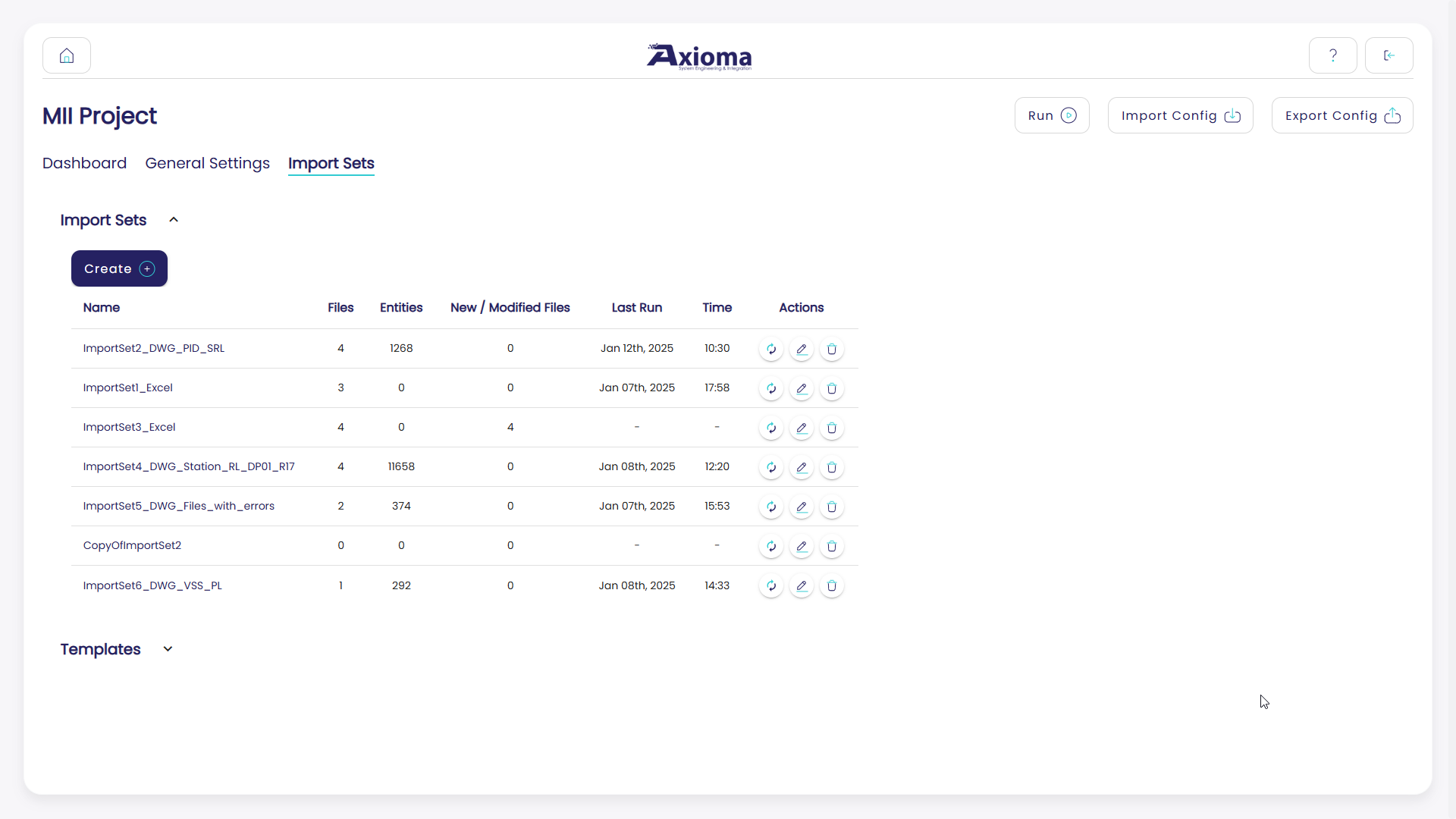
From the Import Sets page, the user can:
Create new import sets. For more information, see Create a New Import Set.
Create new templates. For more information, see Templates.
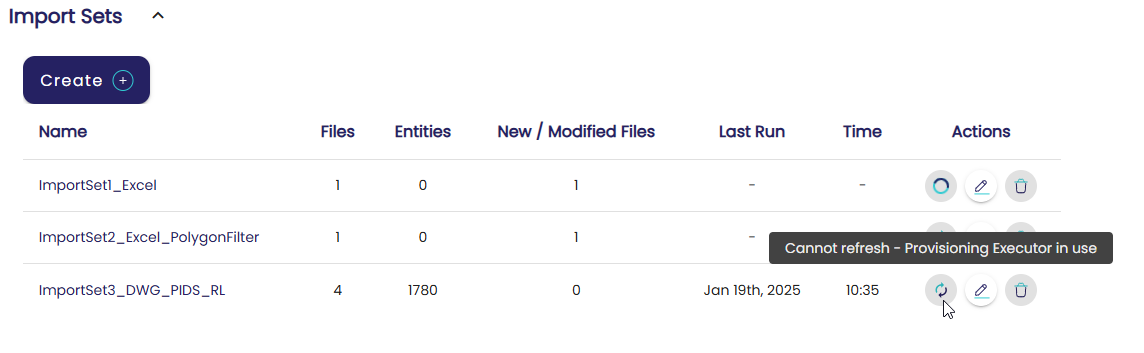
For every existing import set, quick action buttons allow the user to:
Modify the import set basic details.
Refresh the status of the import set.
This button processes the first file contained in the import set folder in order to populate some of the import set fields for feature filtering, attributes refinement, and enhancements.
Delete the import set.
Options 1 and 3 are also applicable for templates.
In addition, the import sets table provides an overview of the status of each import set. In particular:
How many processable files it contains.
How many entities it contains. This information is only available if the import set was processed at least once.
How many new or modified files it contains since the last time the import set was processed.
The time and date of the last time the import set was processed.
Create a New Import Set
When creating an import set, the user must give it a unique name and specify what type of files it contains.
Important
The import set name cannot contain blank spaces.
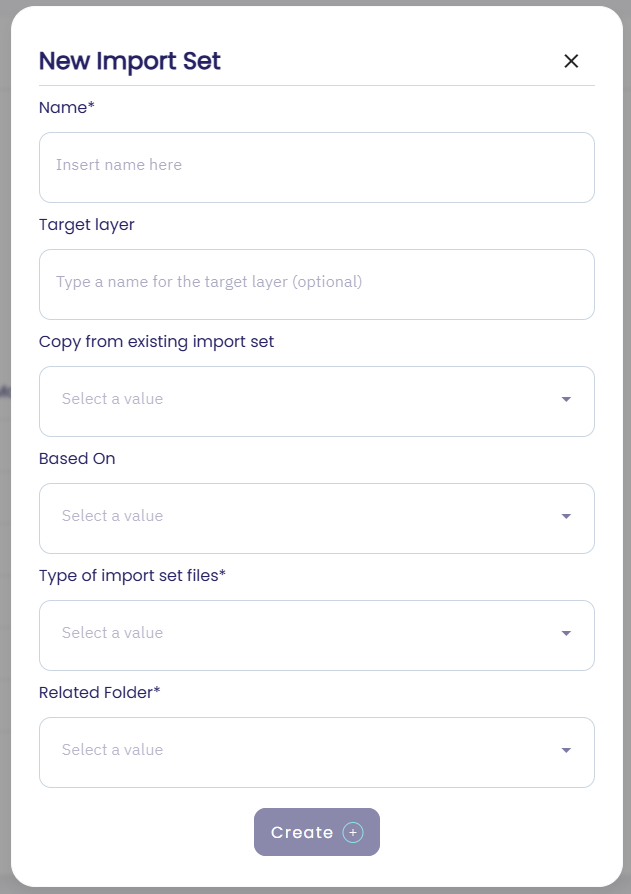
When defining a new import set, the user must select the folder that contains the import set data.
Important
Before creating the new import set, it is mandatory to create the data folder on the GPT server. Each folder can be associated with a maximum of one import set.
GPT allows the user to select from a drop-down list of values corresponding to the folders that exist in the GPT installation directory, under:
Projects/[PROJECT NAME]/data
Every import set can process only files of a given type. Mixed file types are not allowed.
Supported files are:
CAD drawings,
.dwg.Excel tables,
.xlsx.
Optionally, the user can also do one of the following:
Define whether the import set should inherit enhancements from an existing template. For more information, see Templates.
Define whether the import set should be initialized as a copy of another existing import set.
Specify on which GIS layer the import set data will be published.
This is useful especially when the same assets are organized in different file types and are therefore processed via different import sets. By specifying the output layer, the user can force GPT to publish the data on the same GIS layer.
Note
Once the import set is created, the import set file type, folder, and target layer can no longer be modified.
As soon as the user confirms the import set creation, GPT pre-processes the content of the import set folder. This is why the Refresh icon starts spinning.
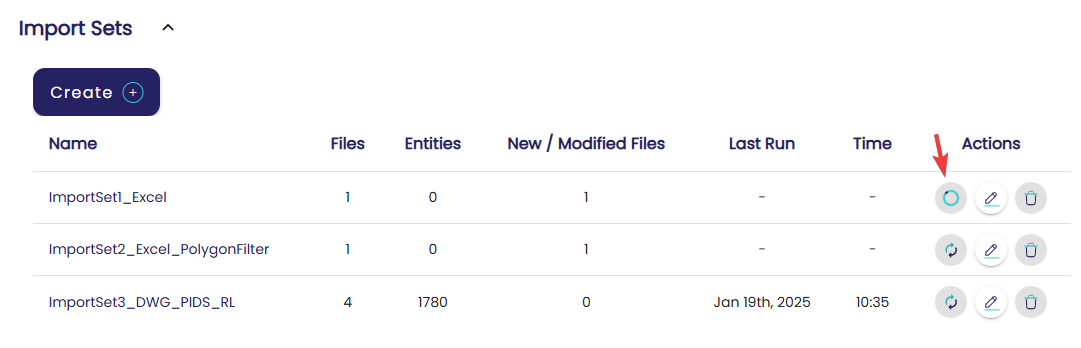
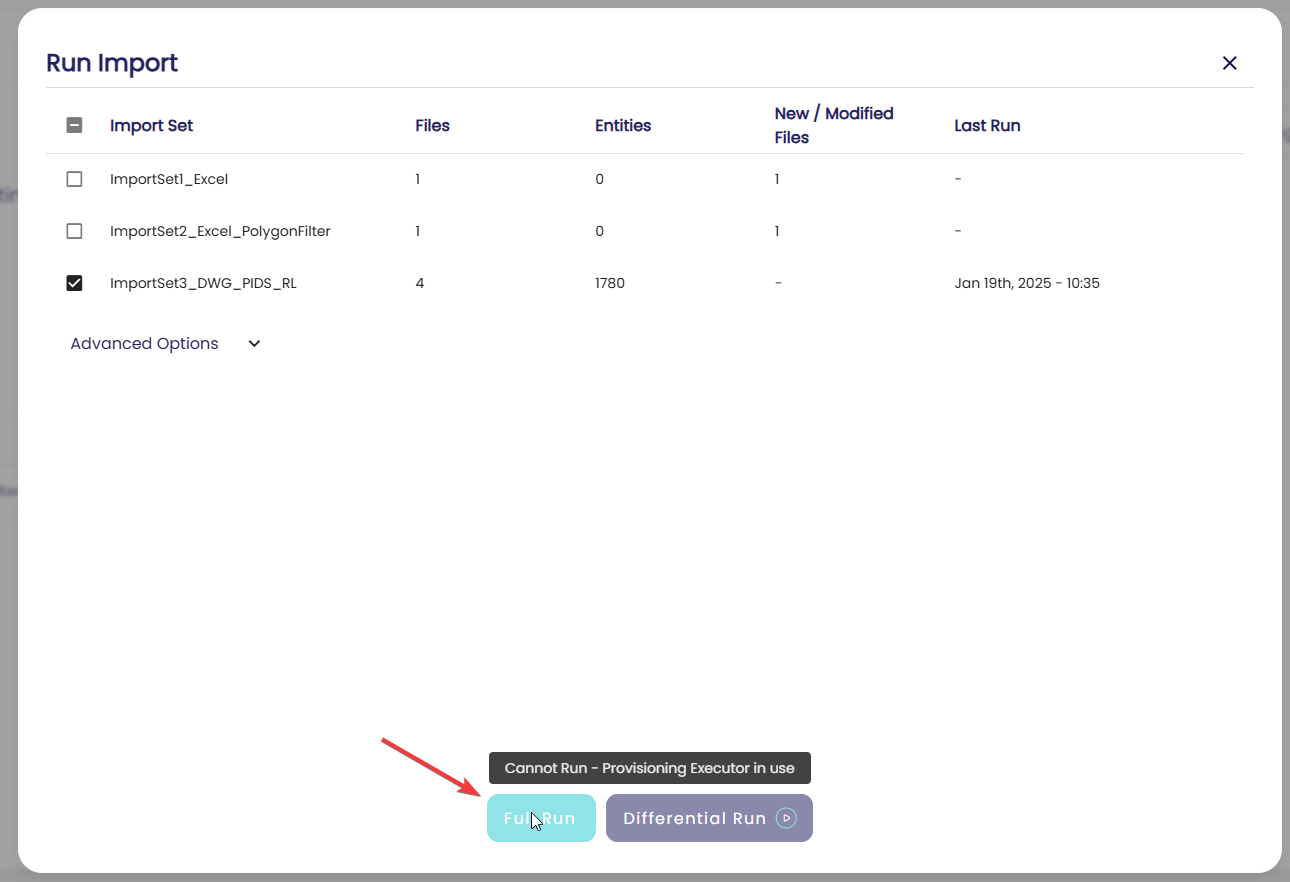
During this time, the user is not allowed to perform other operations, such as deleting or running import sets.
File Name Filter
On every import set, the user can specify an advanced file name filter, consisting of comma-separated strings. The filter is case-sensitive.
The strings are used to select a subset of the import set files: only files whose name contains at least one of the specified strings will be processed by GPT.
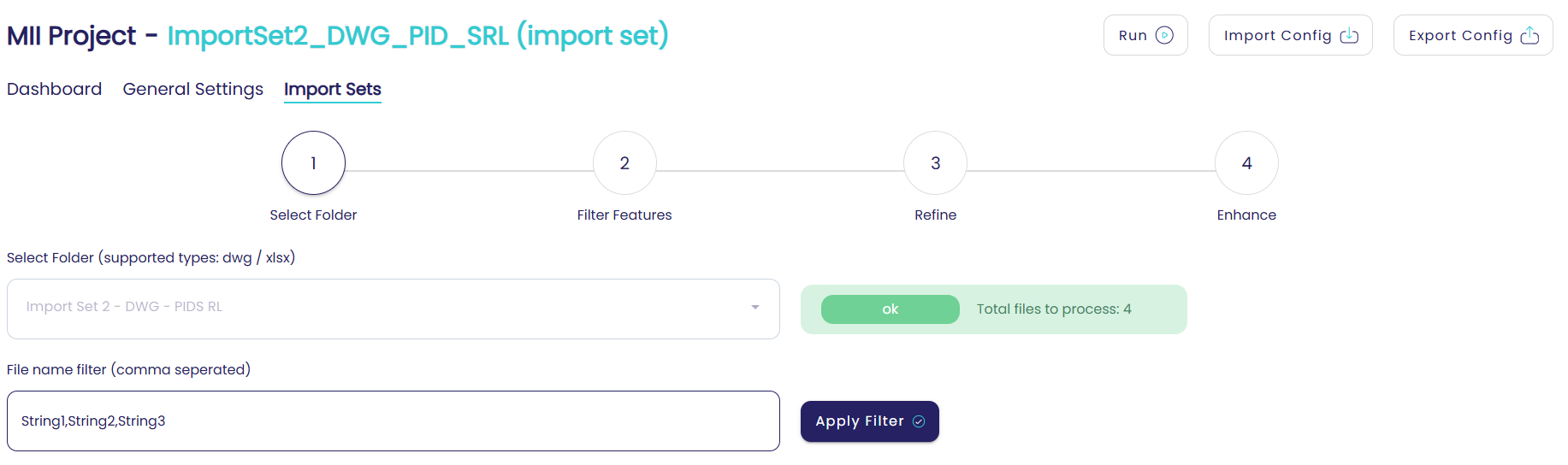
On this page, the user is informed about the number of processable files that GPT found in the selected folder. This number excludes all files contained in the import set folder whose name does not match the filter.
Note
If the selected folder is empty, or if the applied filter makes it empty, the user will be warned.
Filter Features
For every import set, it is possible to specify filters in order to avoid importing unnecessary content into GIS.
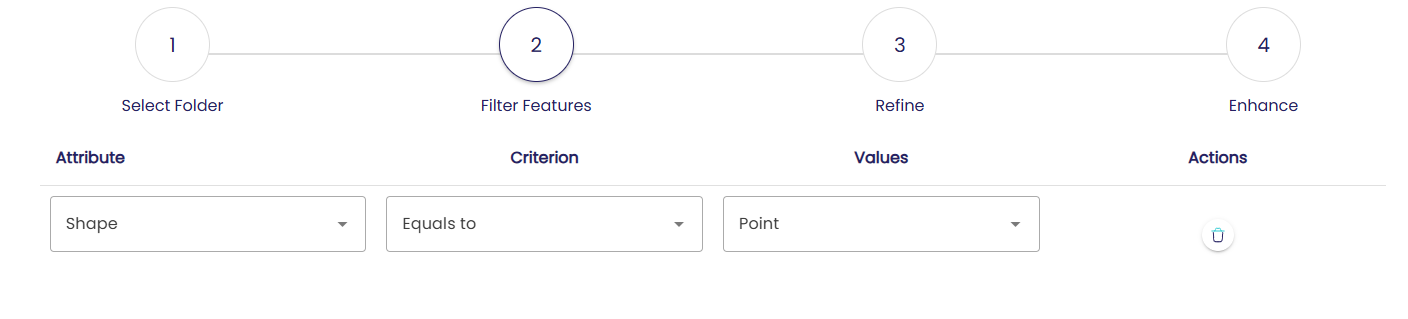
The Filter Features section allows the user to specify what features will ultimately be imported into GIS.
In particular, the user can define a set of rules, which will be interpreted as
linked through the AND operator.
The rules allow the user to:
Filter by layer type
This filter applies only to CAD files. It allows GPT to import only the features that belong to a user-defined set of layers, and disregard the others.
The user is presented with a drop-down list of available layers, based on the content of the first file of the import set folder. Optionally, the user can manually type a layer name if it is not available in the drop-down. This may happen when the files of the import set do not have the same layers.
Filter by shape type
This filter applies only to CAD files. It allows GPT to import only the features that have a specific shape: polygon, polyline, point, or annotation.
Filter by attribute value
This filter allows GPT to import only the features for which a given attribute has a specific value.
In all the above cases, the options for the filter condition can be one of:
equal tonot equal toone ofnot one of
Attributes Refinement
The Refinement section allows the user to put attribute whitelisting in place.
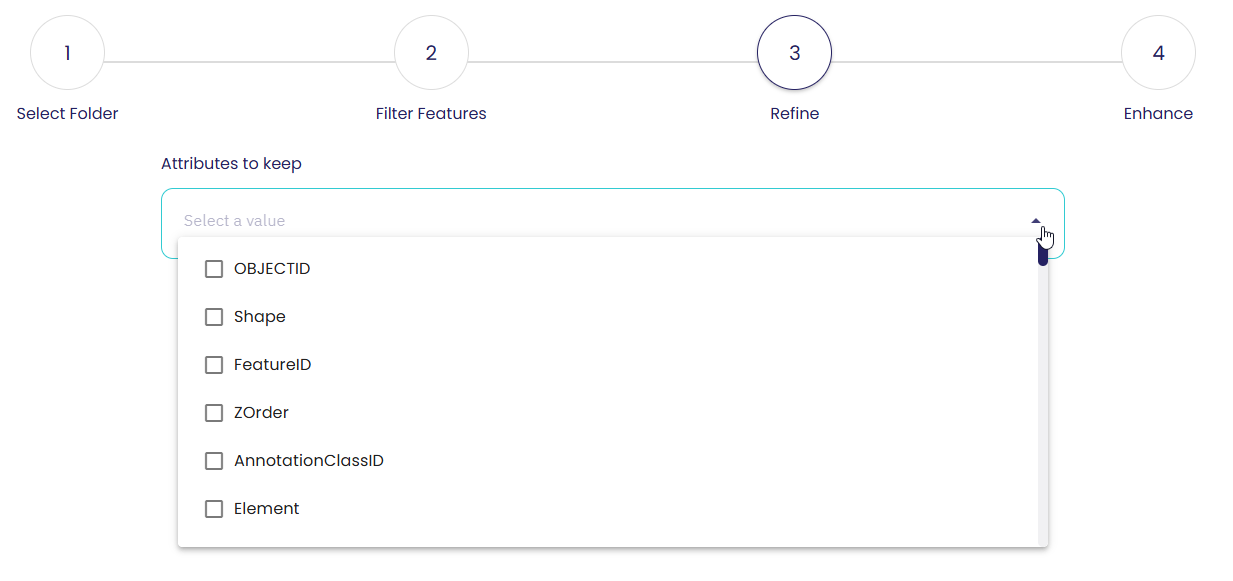
Via this section, the user can select a subset of attributes that will be imported into GIS as feature fields.
A drop-down allows the user to multi-select the attributes to whitelist. The attributes in this drop-down are calculated based on the content of the first file of the import set folder.
Optionally, the user can manually type an attribute if it is not available in the drop-down. This may happen when the files of the import set do not have the same attributes.
By default, GPT imports all attributes into GIS, unless the user specifies otherwise via this section.
Attributes Enhancement
Often, it is required to enrich the original data by adding missing attributes that provide useful information to the systems or users that will consume the data via GIS server.
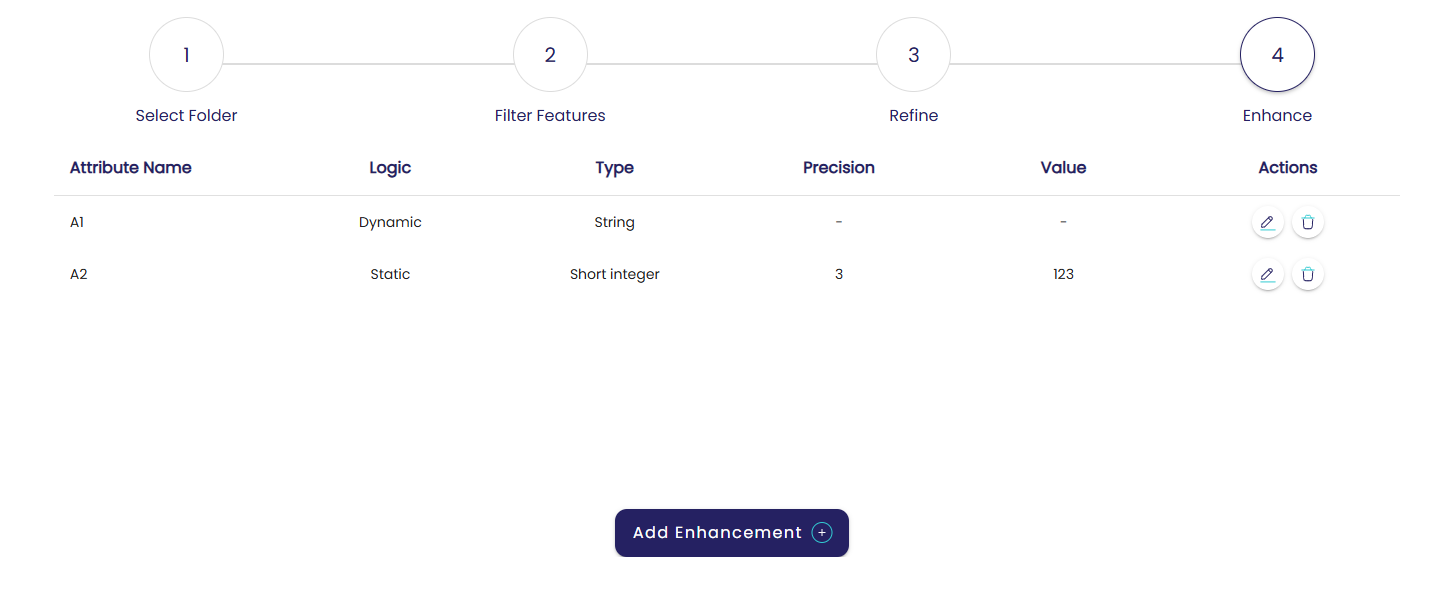
This is the objective of the Enhancement section. In this section, the user can define new attributes that will be added to the features of the import set.
When defining a new attribute, the user must specify its name and type:
Short integer
Long integer
Float
Date
String
A new attribute can be:
Static
The value of the new attribute is defined by the user once and for all. All features will have the same value in the new attribute.
Dynamic
The value of the new attribute is different for every feature. In this case, the attribute value can be computed in two different ways:
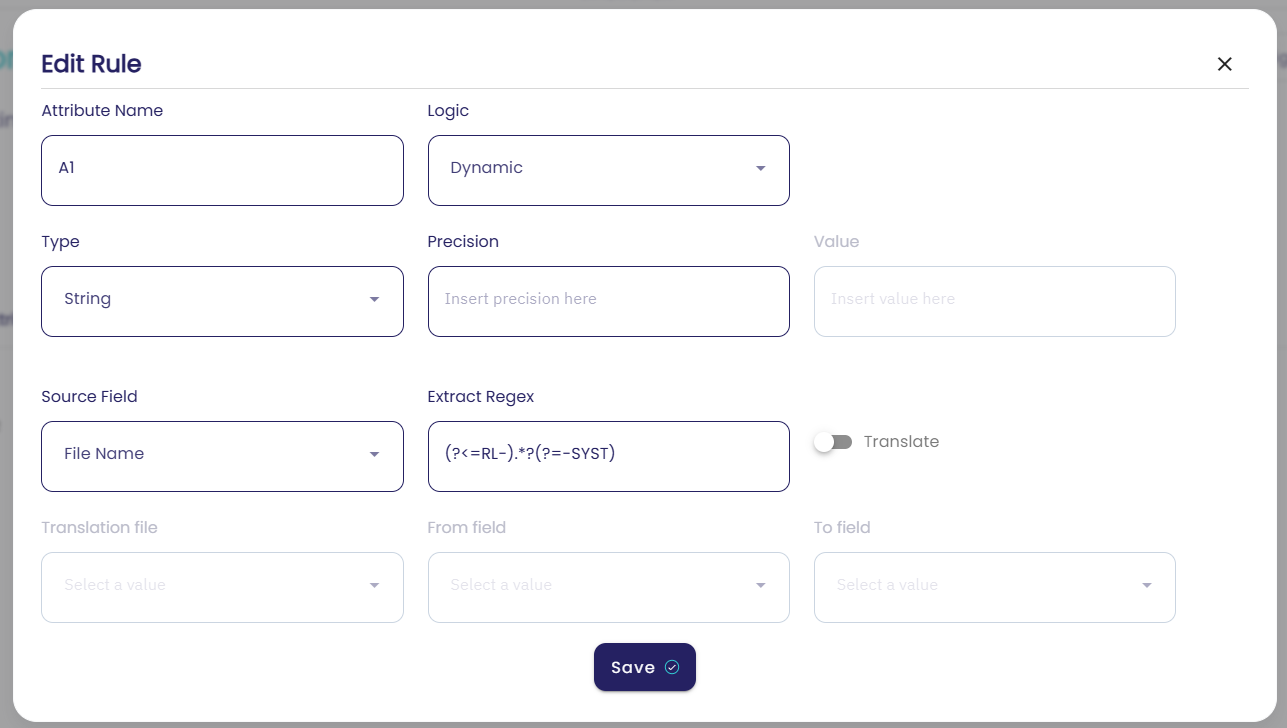
Using a regular expression to extract the value from another attribute.
Using a regular expression to extract an ID from another attribute, and using the ID as a lookup value in an external file, also referred to as a translation file, that contains the actual value.
In the second case, the translation file must be a CSV file that the user must place on the GPT file system, in the folder:
projects/[PROJECT NAME]/prov/config